
How to Change Volume Increments on Xbox One Voice Control

To skip the details and get back to playing head to the *
So I finally broke down and bought an Xbox One the other day. I love the thing but there are some tweaks I needed to make to get the experience I wanted working. I hooked up my DVR to the new Xbox and began using the voice controls to switch between games, apps and tv. It worked great except that when I used the “Xbox Volume Up/Down” control the volume only went up about 3 clicks. This led to an almost unnoticeable difference so as you can imagine I needed to start screaming “Xbox Volume Up” about 10 times to get to the volume I wanted. What a huge pain in the ass…
After a week or so of this I couldn’t take it any longer so I decided to cruise through the settings to find a solution. What I found and how you can tweak your own settings is below.
First say “Xbox Settings” to get over to that menu. Once there, you’ll want to go to the “TV and One Guide Settings” by clicking on that box. Now, as shown below click on the “Troubleshooting” button.
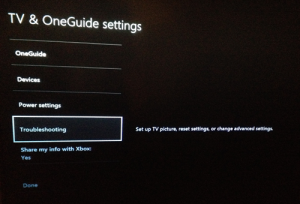
Then head down to “Audio” and click into there. The second option down should say “Volume Change”.
It looks like you can set the volume increment to anywhere between 1 and 10 “clicks” of your remote. I myself found it best to keep it at 10 but I’m sure this depends on the model of TV you have and your own personal preference. Set it to what you want and your volume voice commands should work a whole lot better now. Enjoy!
*For the skippers: “Xbox Settings” -> “TV and One Guide Settings” -> “Troubleshooting” -> “Audio” -> “Volume Change”

No comments yet.
Add your comment